Keep original files intact
OpenRoom saves edits in your catalog and exports the finished image as a separate file.
 OpenRoom
Free, open-source photo editor
Organize your library, develop RAW files, and export finished photos on your own computer.
Windows / macOS / Ubuntu
Trouble installing or opening OpenRoom? →
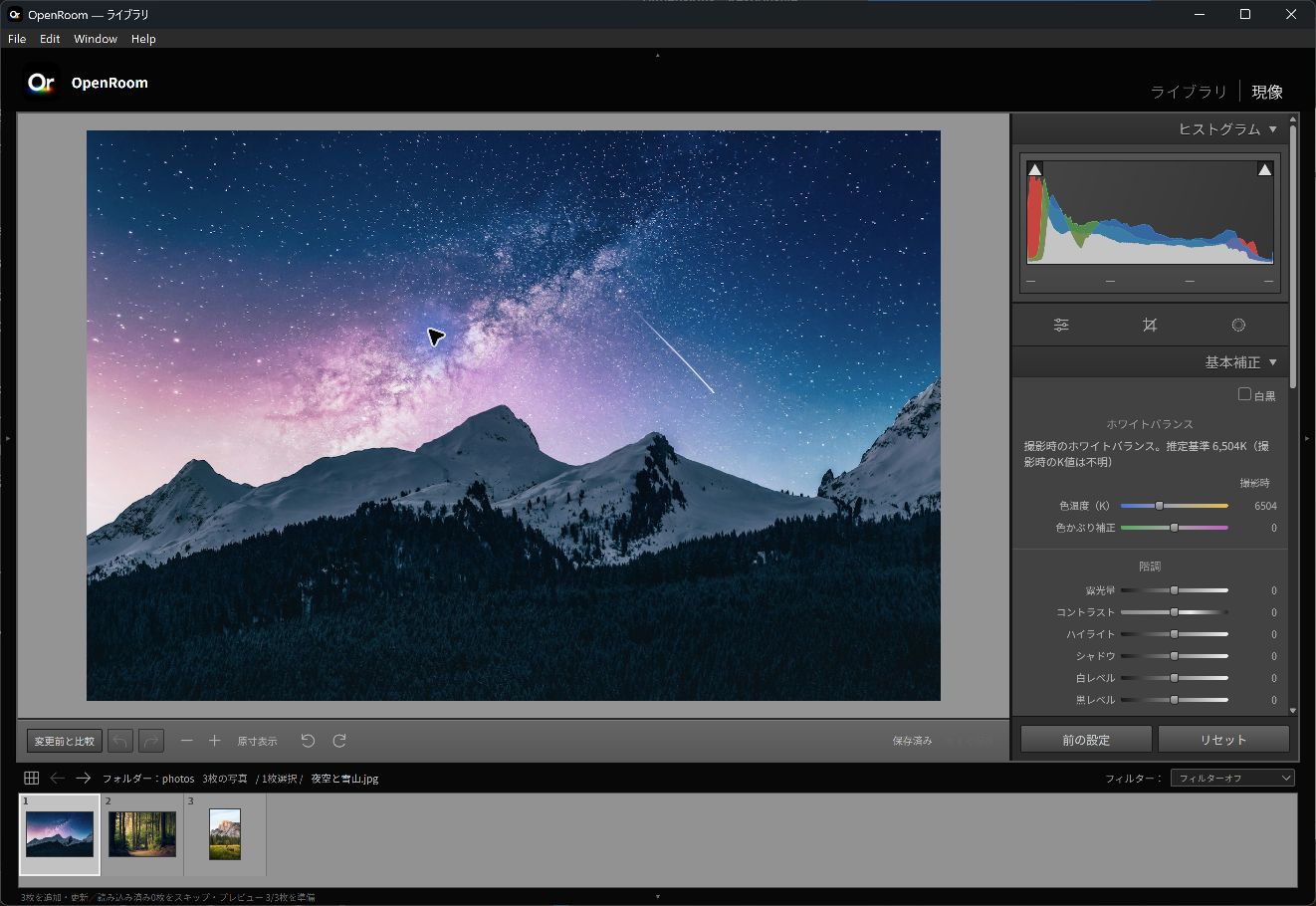
Photo library
Browse the grid, inspect a single image, or compare candidates side by side. Rate, flag, or color-label photos, then filter by date, camera, or lens.
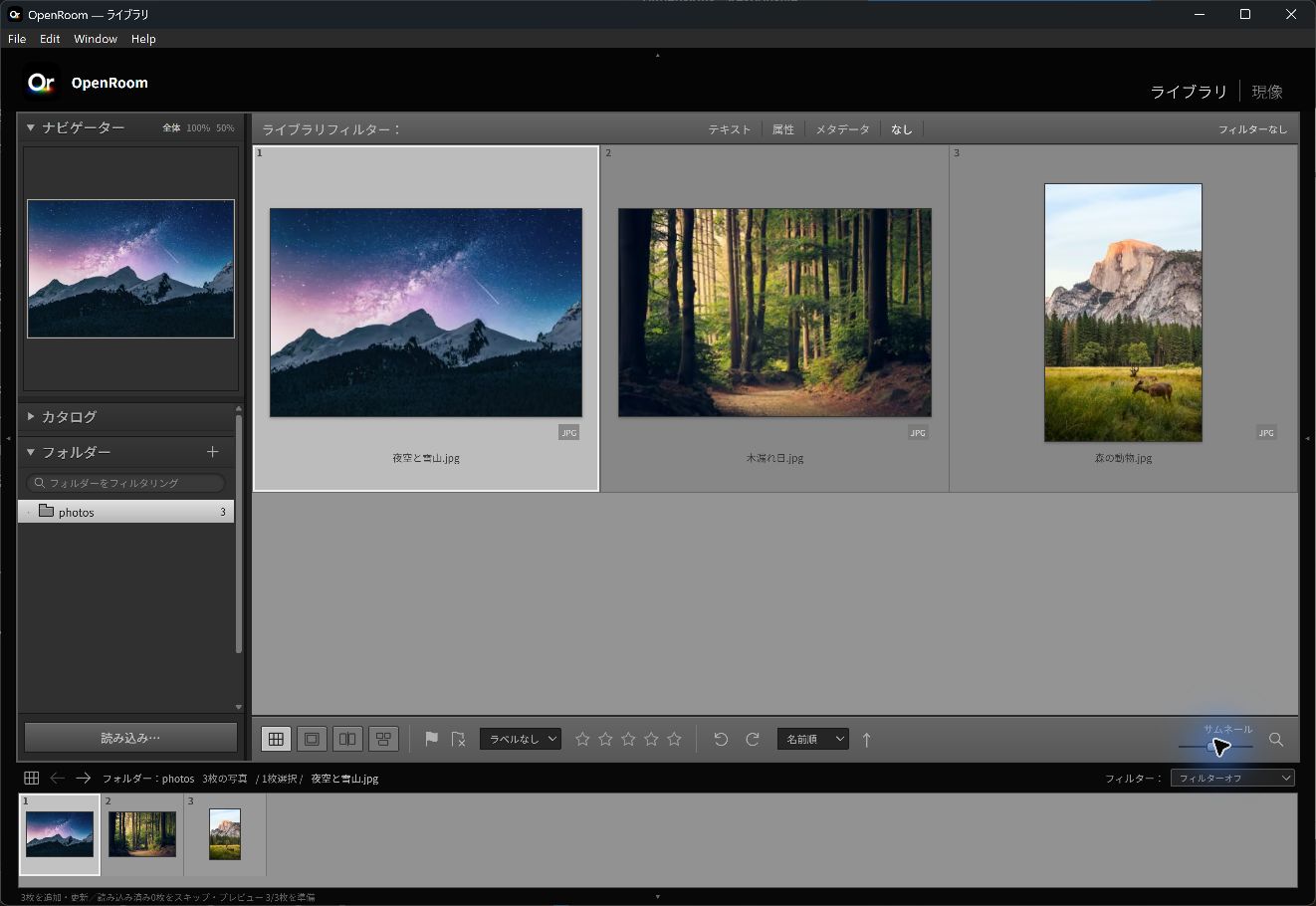
RAW editing
Set exposure and white balance, shape the tone curve, or adjust individual colors. Use brushes and gradients to edit a specific part of a photo.
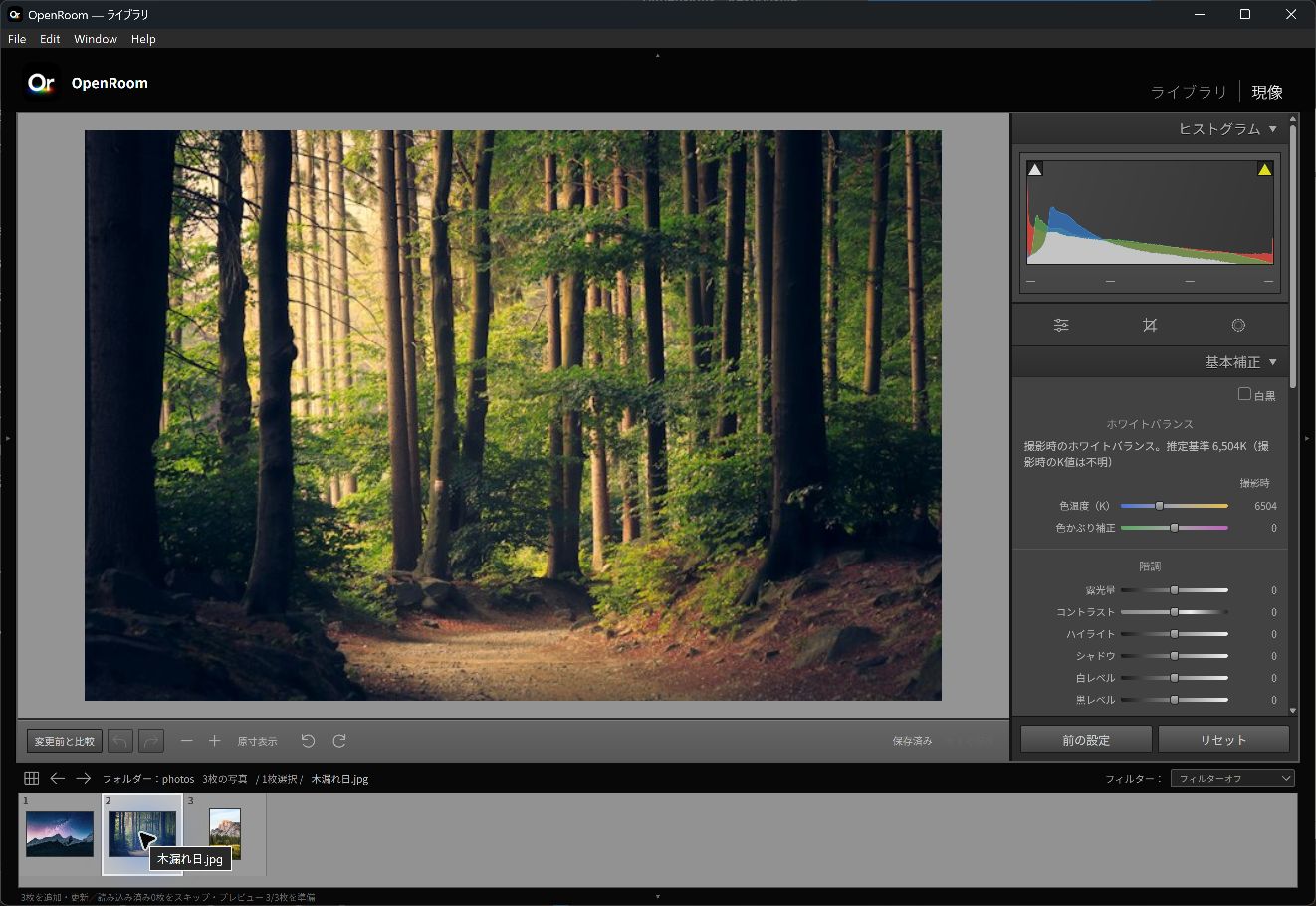
OpenRoom saves edits in your catalog and exports the finished image as a separate file.
Copy adjustments, sync settings across a selection, or apply a preset to photos taken in similar light.
Export JPEG, PNG, or TIFF. Choose the size and quality, and add a white or black border if you like.
Download
Choose the latest release for your computer.
Mac or Windows security features may prevent OpenRoom from opening. See installation and startup help
chmod +x OpenRoom-0.7.19-linux-x86_64.AppImage./OpenRoom-0.7.19-linux-x86_64.AppImageYou can also check for updates in Settings → Check for updates.
Use this guide if you downloaded OpenRoom from this site and see one of these warnings or errors.
These steps also apply if Apple cannot check the app for malicious software. Check where you downloaded it and proceed only if you trust the source and choose to run it.
If the warning says the app will damage your computer or is damaged, stop and contact us instead.
Apple's guideIf the error names openroom_rtengine.dll, Smart App Control may be blocking the unsigned RAW processing library. Reinstalling the same version may not resolve it.
Check its status in Windows Security → App & browser control → Smart App Control settings. There is no exception to allow only OpenRoom.
Turning it off reduces protection across your PC. Depending on your Windows updates, turning it back on may require reinstalling Windows. Read the warning in Settings and change it only if you understand the impact.
Keep Microsoft Defender real-time protection on. Turning Smart App Control back on may block OpenRoom again.
After accepting the terms on first launch, open Settings (環境設定) from the OpenRoom menu on Mac, or press Ctrl+, on Windows. Choose English under Language (言語).
Yes. OpenRoom is free to download. Its original code is licensed under GPL-3.0-or-later. Your photos and exported images are not covered by that license.
Your photos stay where they are. You can browse saved previews while the originals are offline. Reconnect the originals to edit or export. Back up your catalog and original photos separately.
OpenRoom reads RAW files such as DNG, CR3, ARW, RAF, and NEF, as well as JPEG, HEIF, TIFF, and other formats. RAW support depends on the camera and compression. Each input file can be up to 64 megapixels and 1 GiB.
For visitor counts, a cookie stores the date of your last visit.